How to Improve Your Wi-Fi Signal
- Filed by
- Tech
- Received
- Length
- 4 min
A slow or patchy wireless connection is one of the most common tech frustrations at home and in small offices. Video calls freeze, streams buffer and some rooms seem to have no signal at all. Before buying anything, it is worth understanding why Wi-Fi weakens and which fixes cost nothing. Most problems come down to distance, obstacles and interference.
Start by measuring
Walk around with your phone or laptop and note where the connection is strong, weak or absent. Many phones show signal bars, and router apps often display signal quality per device. Run a speed test in a few rooms at the same time of day. This gives you a simple map and lets you check whether each change actually helps.
Move the router
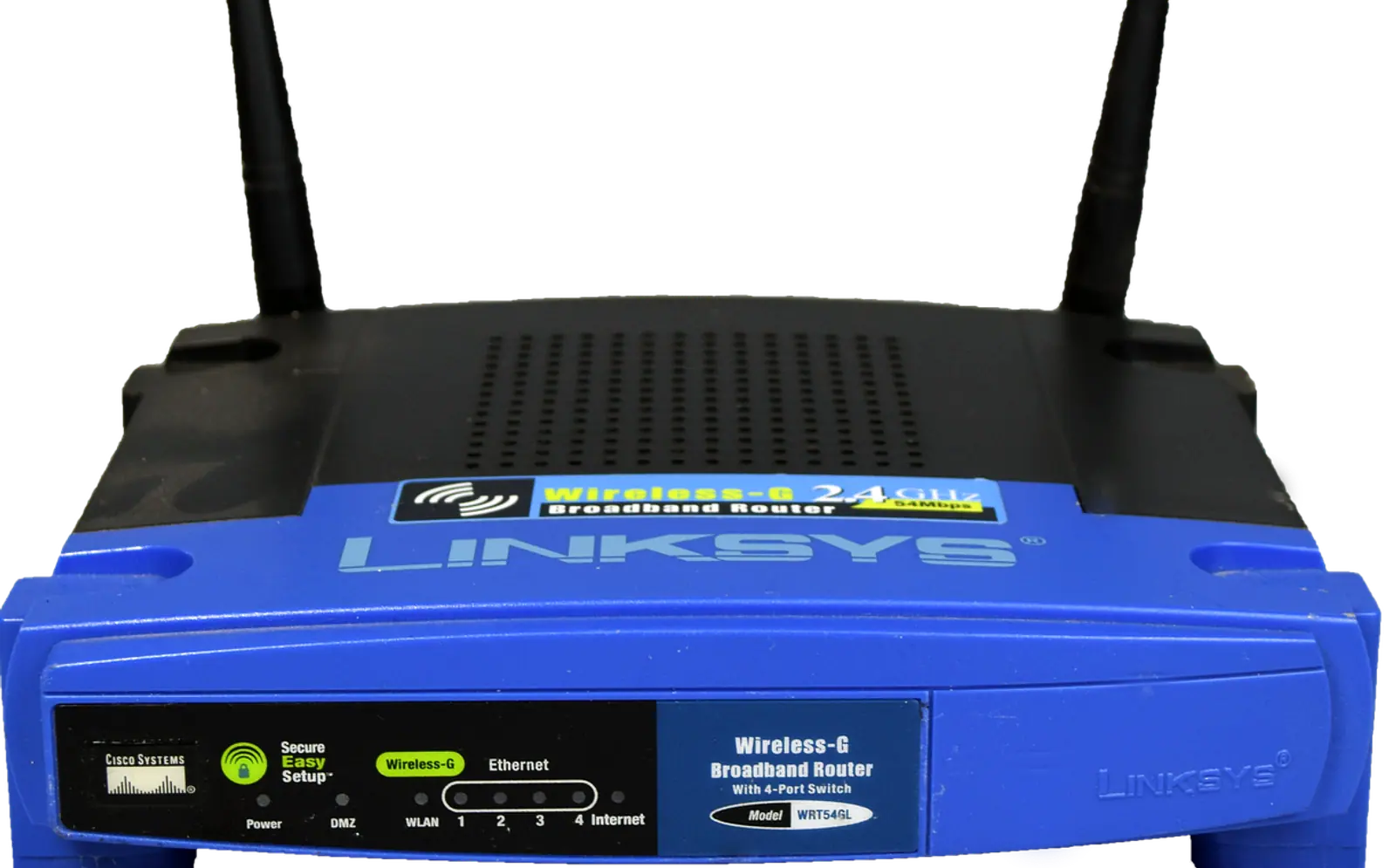
Placement is the single biggest free improvement. Wi-Fi radiates outward from the router, and every wall and floor absorbs some of it.
- Place the router as central in the home or office as the cabling allows.
- Raise it off the floor; a shelf or the top of a cabinet is better than behind the sofa.
- Keep it out of cupboards and away from metal objects, mirrors and fish tanks.
- Give it some distance from microwaves, cordless phone bases and baby monitors, which can interfere.
- If it has external antennas, try angling some vertically and some horizontally.
Use the right band
Most routers broadcast on more than one frequency band, and each behaves differently.
| Band | Range | Speed | Best for |
|---|---|---|---|
| 2.4 GHz | Longer, passes walls better | Lower | Distant rooms, smart-home gadgets |
| 5 GHz | Shorter | Higher | Streaming, video calls near the router |
| 6 GHz (newer standards) | Shortest | Highest, least crowded | Compatible devices in the same room or next door |
Many routers use "band steering" to move devices automatically. If a laptop near the router keeps choosing the slower band, try naming the bands separately and connecting manually.
Reduce interference
In apartment buildings, dozens of networks may compete for the same airwaves. Your router's settings page or a Wi-Fi analyser app can show which channels are busy. On the 2.4 GHz band, channels that do not overlap are usually the better choice; on 5 GHz there are more channels to spread across. Many routers pick automatically, but a manual choice can help in a crowded block.
Update and restart
- Log into the router's admin page or app and install any firmware updates; they often fix bugs and security holes.
- Change the default admin password if you never did, and make sure the network uses current encryption such as WPA3 or WPA2.
- Restart the router occasionally, or schedule a restart if the option exists.
- Check for devices you do not recognise and remove them.
Protecting the router is part of protecting every account you use over it, alongside measures like two-factor authentication.
Wire what you can
A cable is still the most reliable connection. Desktop computers, TV boxes and games consoles that sit near the router benefit from Ethernet, and moving them off Wi-Fi frees up airtime for phones and laptops. Where running a cable is impractical, powerline adapters use the building's electrical wiring to carry data, though results depend on the wiring.
Extend coverage properly
If some rooms remain weak after the free fixes, you have two main options:
- Range extender – picks up the existing signal and rebroadcasts it. Simple and inexpensive, but it can cut the speed available and may create a separate network name.
- Mesh system – several units work together as one network, handing devices between them as you move. It is generally smoother in larger or multi-storey homes; units connected to each other by cable perform best.
Place each extender or mesh node roughly halfway between the router and the weak area, where it still receives a good signal, rather than in the dead zone itself.
Check the devices too
An older laptop or phone with an outdated wireless chip may be the bottleneck, even next to a modern router. Update operating systems and network drivers, forget and rejoin the network if a device behaves oddly, and remember that thick phone cases with metal parts can weaken reception.
When the problem is the internet line
If speeds are poor even with a cable plugged straight into the router, Wi-Fi is not the issue; the connection coming into the building may be. Contact your provider with your test results. For streaming in particular, our guide on optimising your home network for IPTV goes further into prioritising video traffic.
The order to try things
Measure, move the router, choose the right band, update and secure it, wire the stationary devices, and only then add an extender or mesh. Working through the list in that order fixes most weak signals without spending more than you need to.




- 68
- articles
- 9
- topics
- 3
- min average read
- 2020–2026
- years covered